
TUI and macOS app
Watch and manage OpenShell sandboxes from the DefenseClaw terminal UI's Sandboxes panel or the macOS app's Sandboxes view, menu bar and notifications, and run sandbox setup from either.
You don't need a second terminal running sandbox activity. The TUI and
the macOS app show the same sandboxes, the same live feed and the same asks,
and they can stop, pull, undo and unblock for you. Both read the DefenseClaw
daemon, so a sandbox started from any of them shows up in all of them.
| Task | Command line | TUI | macOS app |
|---|---|---|---|
| Set up sandboxes | defenseclaw sandbox setup | Setup (0) → Sandboxes (OpenShell) | Setup → Sandbox (never installs OpenShell) |
| Start a run | defenseclaw sandbox run claude | n in the Sandboxes panel | Copy run command, then paste it in Terminal |
| Watch the feed | defenseclaw sandbox activity -f | 7, then t for Activity | Activity in the Sandboxes view, plus notifications |
| Unblock a site | defenseclaw sandbox unblock HOST --sandbox NAME | u | Unblock in a notification, the menu bar or the view |
| Answer an ask | defenseclaw sandbox approve NAME ID | a, A or x in Asks | Approve, Always… or Reject |
| Resume | defenseclaw sandbox connect NAME | c | Copy connect command |
| Bring back a copy | defenseclaw sandbox pull NAME --apply | P | Copy pull command or Pull to branch |
| Undo | defenseclaw sandbox undo NAME | U | Undo… |
The TUI Sandboxes panel
Open the TUI and press 7:
defenseclaw tui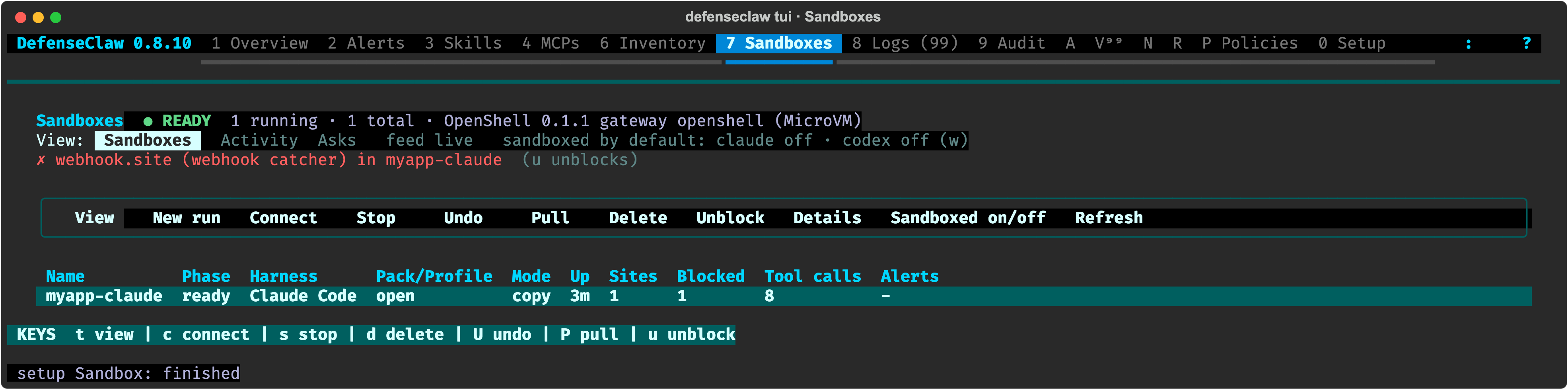
The header shows the state (READY, OFF, WAITING, UNAVAILABLE or
UNREACHABLE), how many sandboxes run, how many asks wait, and the gateway
with its compute driver: docker on Linux, MicroVM on a Mac. OFF points
to the setup wizard, and UNAVAILABLE gives the daemon's reason and
suggests defenseclaw sandbox doctor.
t cycles through three views:
| View | What it shows |
|---|---|
| Sandboxes | Every sandbox, running ones first: name, phase, harness, pack and profile, mode, uptime, sites, blocked sites, tool calls and alerts. Above the table, the newest block still in force and the most urgent alert. |
| Activity | The live feed, newest first. ✓ an allowed site, ✗ a blocked site, ⊘ a blocked tool call, ↺ a lifted block, ⚠ a large upload or a finding, ? an ask, · a lifecycle step. A block you can lift ends in (u unblocks). |
| Asks | Asks waiting for you, with the sandbox, the destination, the program that asked, the risk and the reason. |
Enter opens the selected row's details, and Esc closes them.
Keys
| Key | Action |
|---|---|
t | Switch between Sandboxes, Activity and Asks |
n | Start a new sandboxed run |
c | Connect: start a stopped sandbox and attach its harness |
s | Stop the sandbox (asks first). It is kept, so c resumes it. |
d | Delete the sandbox (asks first). Undo is no longer possible. |
R | Review the changed files that can run code on your machine (a live mount) |
P | Pull the work of a sandbox on a copy: show it, apply it, or put it on a branch |
U | Undo: restore the pre-session snapshot, or revert the last pull on a copy |
u | Unblock a blocked site: Only in this sandbox, or In every sandbox (always) |
a / A / x | Approve an ask once, always approve it, or reject it |
w | Turn the shell wrapper on or off per harness, so claude runs sandboxed |
r | Refresh now |
The KEYS line at the bottom of the panel lists the keys that apply to the selected row, for example:
KEYS t view | c connect | s stop | d delete | U undo | R review | u unblockConfirmations for delete, undo and the "always" choices start on Cancel. The unblock dialog says why DefenseClaw blocked the site. Blocks of private networks, metadata addresses and your organization's block lists cannot be lifted here.
Start a run from the TUI
Press n for New sandboxed run.
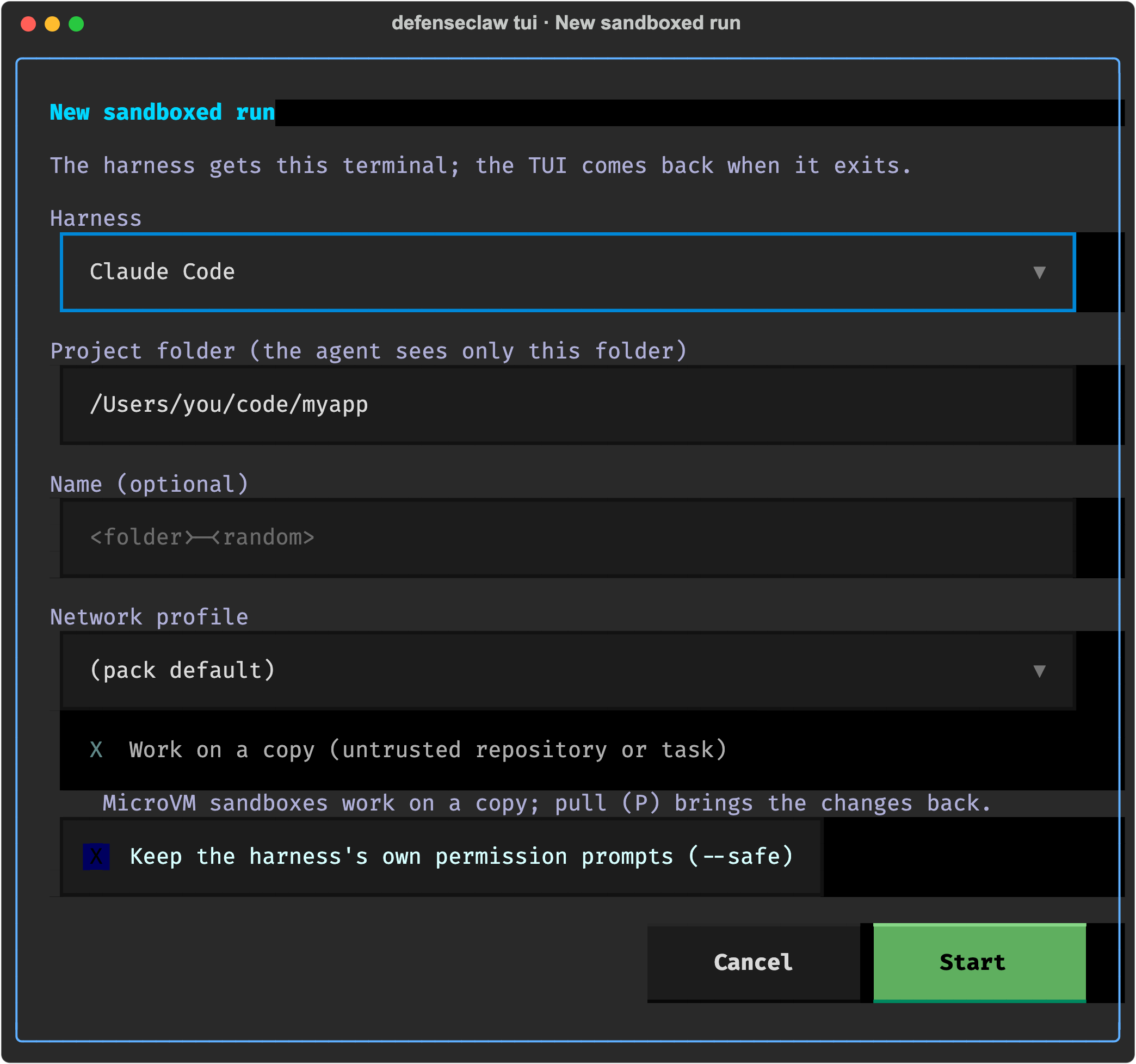
| Field | Meaning |
|---|---|
| Harness | Claude Code, Codex or another harness DefenseClaw runs. The ones you set up come first. |
| Project folder | The only folder the agent sees. Your home folder and system folders are refused. |
| Name | Optional. The default is the folder name plus a short random suffix. |
| Network profile | The pack default, open, balanced or strict. See network profiles. |
| Work on a copy | Same as --copy. On a Mac it is ticked and locked, with the note that P pulls the changes back. |
| Keep the harness's own permission prompts | Same as --safe. |
Ctrl+S starts and Esc cancels. The TUI hands your terminal to
defenseclaw sandbox run, exactly as on the command line. The harness owns
the terminal until it exits; after the end-of-session summary, Enter
brings the TUI back.
Set up from the TUI
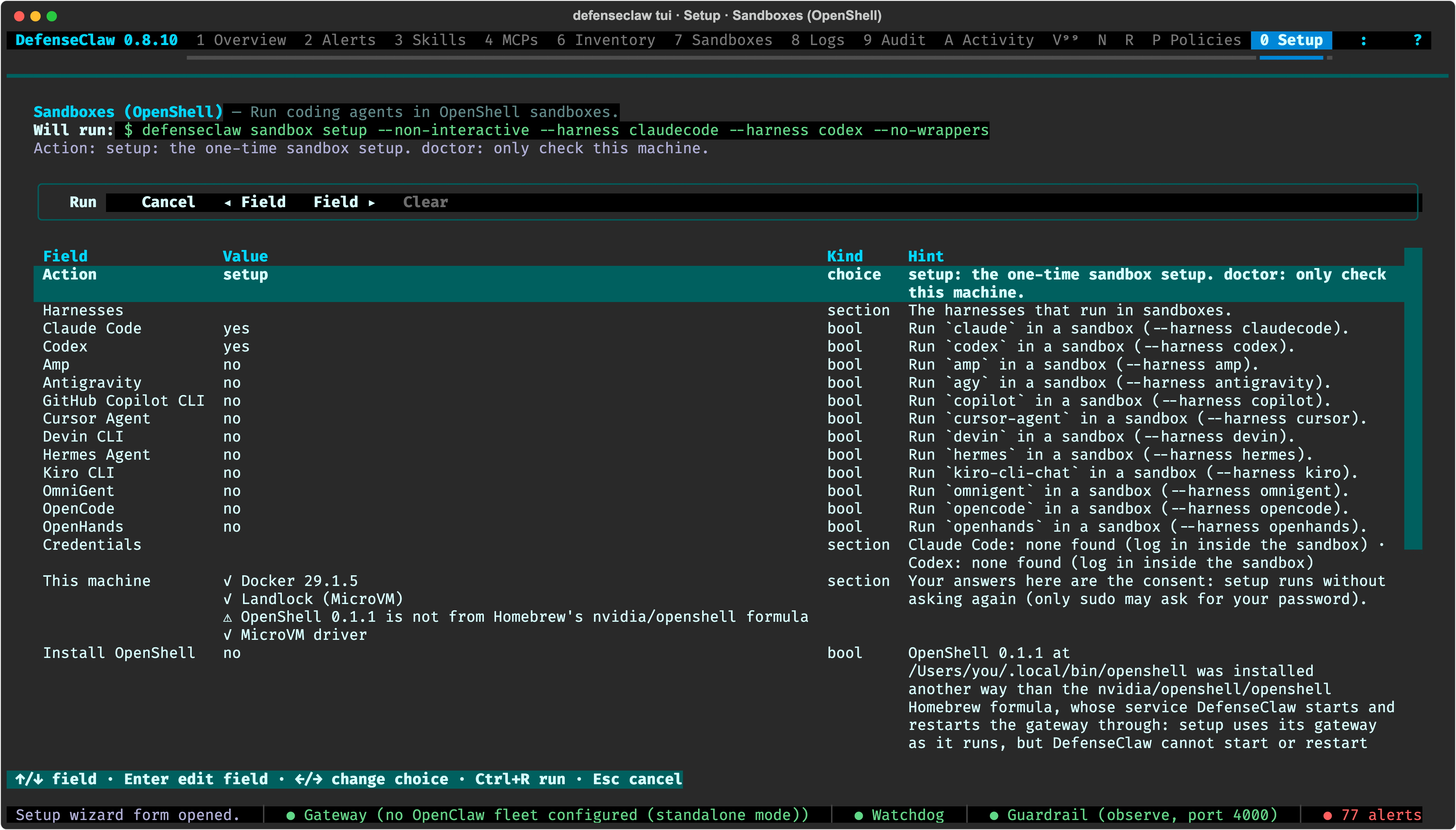
Press 0 for Setup and choose Sandboxes (OpenShell) under Guardrail &
scanning. The wizard checks the machine with defenseclaw sandbox doctor
first, then shows setup's questions as fields:
- Action:
setup, ordoctorto only check the machine. - Harnesses: Claude Code and Codex by default, and the other harnesses DefenseClaw runs.
- Credentials: which model key each harness would get, by name, never its value.
- Install OpenShell: on Linux with NVIDIA's installer, on a Mac from the
nvidia/openshellHomebrew formula. - Mount project folder and Disable OpenShell telemetry: Linux only. On a Mac a MicroVMs section says that every run works on a copy.
- Shell wrappers and Build images now.
Your answers are the consent: the wizard runs
defenseclaw sandbox setup --non-interactive with the matching flags, and
only sudo may still ask for your password. On Windows the wizard says that
OpenShell sandboxes run on Linux and macOS only.
The full reference for the panel is in the TUI guide.
The macOS app
The DefenseClaw macOS app shows sandboxes in four places: the Sandboxes view, the menu bar, notifications and an Overview card. It refreshes every few seconds while it is open.
The Sandboxes view
Open Sandboxes in the sidebar, under Govern, or press ⌘⇧B.
- Header: the status line (how many sandboxes run, how many there are,
how many asks wait, and the gateway), and two buttons: Copy run command copies
cd <project> && defenseclaw sandbox run claude, and Refresh reads the daemon again. - Sandboxes: a table with Name, Phase, Harness, Pack/Profile, Mode, Up, Sites and Alerts.
- The selected sandbox: its harness, project, skip-permissions mode, tool calls, hook events, last tool block and undo point, with actions.
- Asks: each waiting ask, which reads
<sandbox> wants <kind>: <host:port>, with Approve, Always… and Reject. - Activity: the 60 newest events. A blocked site you can lift has an Unblock menu: Only in the sandbox, or In every sandbox (always)…, which asks first.
The app has no launch dialog. Start runs in Terminal with the command Copy run command puts on the clipboard.
Sandbox details and actions
| Action | What it does |
|---|---|
| Stop… | Asks first, then stops the sandbox. It is kept, and defenseclaw sandbox connect NAME resumes it. |
| Copy pull command | Copies defenseclaw sandbox pull NAME. In Terminal it shows the changes, and --apply, --branch or --patch-out FILE brings them back. |
| Pull to branch | Puts the work on branch dc/NAME and leaves your working tree alone. A change that can run code on your Mac is not brought back this way: pull it in Terminal, where it asks. |
| Review changes | For a live mount (Linux): lists the changed files that can run code on your machine. |
| Undo… | Asks first. On a copy it reverts the last pull --apply; on a live mount it restores the pre-session snapshot. |
| Copy connect command | Copies the command that resumes the sandbox. |
On a Mac every sandbox works on a copy, so you see the pull buttons rather than Review changes.
Menu bar and notifications
Once sandboxes are on, the menu-bar popover gets a Sandboxes section: the number of active sandboxes, up to three of them with their harness and uptime, up to two blocked sites with an Unblock button for that sandbox, and up to two waiting asks.
With Notify on sandbox blocked destinations and asks (with Unblock) on in the app's settings, you get a notification when:
| Event | Notification | Actions |
|---|---|---|
| A blocked site you can unblock | "Blocked <host>": the sandbox tried to reach it, and why | Unblock for this sandbox, Review |
| An ask | "<sandbox> asks for access" | Review |
| A new git repository in a mounted project | "<sandbox>: planted git repository" | Review |
| Hooks that cannot reach DefenseClaw | "<sandbox>: hooks are not reaching DefenseClaw" | Review |
Unblock for this sandbox needs an unlocked Mac. It lifts the block for that one sandbox only; unblocking a site everywhere is a confirmed choice in the Sandboxes view. Review opens the Sandboxes view. The app sends at most one notification per sandbox and site per minute.
Set up from the app
Open Setup and choose Sandbox. Pick setup or doctor, tick
Claude Code, Codex or both, and choose Shell wrappers and
Build images now. The app runs
defenseclaw sandbox setup --non-interactive with your answers as flags.
The app never installs OpenShell. If it is missing, run
defenseclaw sandbox setup --install-openshell in Terminal first. See
sandboxes on macOS.
When sandboxes are off, the Sandboxes view says so and offers Open Setup. When they are unavailable, it offers Run sandbox doctor.
The full reference is in the macOS app guide.