
Advanced Features
Power-user capabilities for deeper security control.
Custom YARA Rules
Write your own YARA rules to detect organization-specific patterns. Your rules run alongside the built-in set on every scan.
Setup:
- Create a directory for your rules (e.g.
~/.security-rules/yara/) - Add
.yaror.yarafiles to it - Set
mcp-scanner.customYara.rulesPathto that directory - Enable
mcp-scanner.customYara.enabled
Open your custom rules folder quickly via the Command Palette: Open Custom YARA Rules Folder.
Writing effective rules:
YARA rules for MCP scanning match against tool descriptions and server configuration text. Here's an example rule that flags tools referencing an internal staging domain:
rule internal_staging_domain {
    meta:
        description = "Tool references internal staging domain"
        severity = "medium"
        threat_type = "data_exfiltration"
        author = "Security Team"

    strings:
        $staging = "staging.internal.example.com" nocase
        $stg_api = "api-stg.example.com" nocase

    condition:
        any of them
}
Key fields in the meta section:
severity— One ofcritical,high,medium,low. Controls how the finding is displayed.threat_type— Maps to the threat category taxonomy (e.g.data_exfiltration,prompt_injection).description— Shown as the finding title in the UI.
Rules are loaded once at scan time. After adding or modifying rules, the next scan will pick up the changes.
For skill scanning, the skill-scanner also supports custom YAML regex rules. Each YAML rule requires an id, category, severity, patterns (list of Python regex strings), and description. Place custom YAML rules in a file and point to it via skill-scanner.customRulesPath. Validate your rules before use:
skill-scanner validate-rules --rules-file /path/to/my-custom-rules.yaml
Scan Policies
Control how aggressively skill findings are reported with three built-in presets:
| Preset | Behavior | Best for |
|---|---|---|
| Strict | Maximum detection sensitivity. Minimal allowlists (6 benign dotfiles), lower zero-width character thresholds, placeholder credential filtering disabled. Accepts more false positives for thorough coverage. | Security-critical projects, compliance audits, untrusted external skills |
| Balanced | Good trade-off between true positives and false positives. Moderate allowlists (35 benign dotfiles), reasonable thresholds, placeholder and API documentation filtering enabled. | Most development workflows (default) |
| Permissive | Minimize false positives. Extensive allowlists (83+ benign dotfiles), higher thresholds, some rules disabled (e.g. capability_inflation_generic, indirect_prompt_injection_generic). Demotes certain findings to lower severities. | Trusted internal tools, high-trust environments, reducing noise |
Set the policy via settings: skill-scanner.scanPolicy.
Custom policy files:
For full control, set the policy to Custom and provide a YAML file via skill-scanner.scanPolicyFile. Custom policies merge on top of a chosen preset base — you only need to specify the sections you want to override.
Generate a starter policy file with all available options using the skill-scanner CLI:
skill-scanner generate-policy --preset balanced --output my-policy.yaml
Or use the interactive TUI configurator:
skill-scanner configure-policy --output my-policy.yaml
Policy structure:
A custom policy YAML contains these top-level sections:
policy_name: "my-org-policy"
policy_version: "1.0"
preset_base: "balanced"

# Which dotfiles/dotdirs are treated as benign (not flagged)
hidden_files:
  benign_dotfiles:
    - ".gitignore"
    - ".myCustomConfig"
  benign_dotdirs:
    - ".github"

# Shell pipeline analysis tuning
pipeline:
  known_installer_domains:
    - "sh.rustup.rs"
    - "install.mycompany.com"
  demote_in_docs: true
  demote_instructional: true

# Which rules fire on which file categories
rule_scoping:
  skillmd_and_scripts_only:
    - "coercive_injection_generic"
  skip_in_docs:
    - "code_execution_generic"
  code_only:
    - "prompt_injection_unicode_steganography"
  dedupe_duplicate_findings: true

# Known test credentials to suppress
credentials:
  known_test_values:
    - "sk_test_4eC39HqLyjWDarjtT1zdp7dc"
  placeholder_markers:
    - "example"
    - "changeme"

# Safe cleanup targets (suppresses rm -rf findings)
system_cleanup:
  safe_rm_targets:
    - "dist"
    - "build"

# File type classification
file_classification:
  inert_extensions: [".png", ".jpg", ".gif"]
  code_extensions: [".py", ".sh"]
  skip_inert_extensions: true

# Numeric limits for file inventory
file_limits:
  max_file_count: 100
  max_file_size_bytes: 5242880
  max_reference_depth: 5
  max_name_length: 64
  max_description_length: 1024

# Analysis thresholds
analysis_thresholds:
  zerowidth_threshold_with_decode: 50
  zerowidth_threshold_alone: 200
The preset_base field inherits all defaults from the chosen preset, then your overrides are applied on top. Only include the sections and fields you want to change.
CodeGuard Rule Injection
CodeGuard injects security rules into your IDE's agent context so AI-generated code follows secure coding patterns from the start. Rules are sourced from the Project CodeGuard repository.
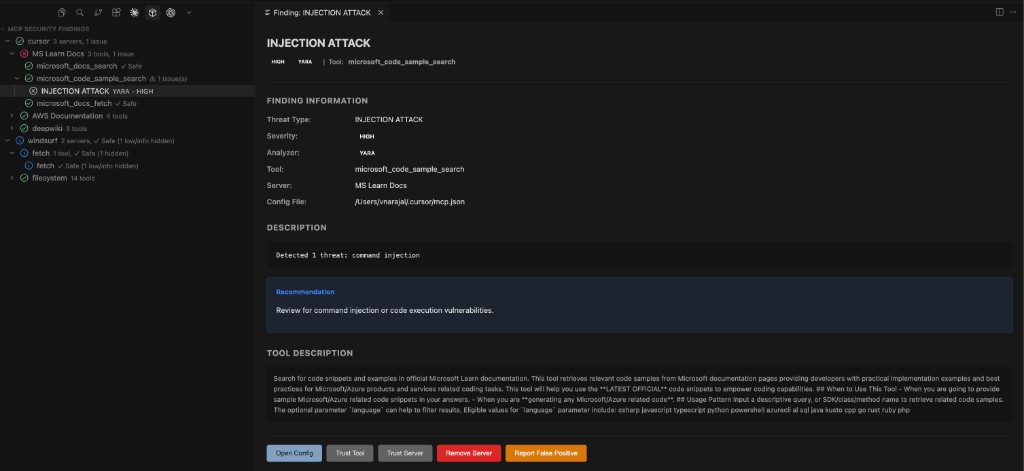
Supported IDEs and target directories:
| IDE | Target directory |
|---|---|
| Cursor | .cursor/rules/ |
| Windsurf | .windsurf/rules/ |
| GitHub Copilot | .github/instructions/ |
| Antigravity | .agent/rules/ |
Available rule categories:
Rules cover 20+ security domains, including:
- Input validation and injection defense
- Authentication and MFA
- Authorization and access control
- Cryptographic security and TLS
- Session management and cookies
- Client-side web security (XSS, CSP, CSRF)
- API and web services security
- Secure C/C++ functions and memory safety
- File handling and uploads
- Infrastructure as Code (IaC) security
- Kubernetes and container hardening
- DevOps, CI/CD, and supply chain security
- Mobile application security
- MCP (Model Context Protocol) security
- Logging and monitoring
- Privacy and data protection
- Digital certificate validation
- No hardcoded credentials
Workflow:
- Run CodeGuard: Configure CodeGuard Rules from the Command Palette
- Select which IDEs to target and which rule categories to include
- Run CodeGuard: Inject Rules Now to write the rules to disk
- Your IDE's AI agent will now follow the injected rules when generating code
Use CodeGuard: Remove All Rules to cleanly undo any changes. Use CodeGuard: Show Injection Status to see which rules are currently active. You can also use CodeGuard: Reset Injection Consent to reset the prompt asking for permission to inject rules.
Watchdog File Protection
Watchdog monitors critical AI configuration files and alerts you (or auto-restores) when they change unexpectedly. It uses SHA-256 snapshots with HMAC verification to detect tampering.
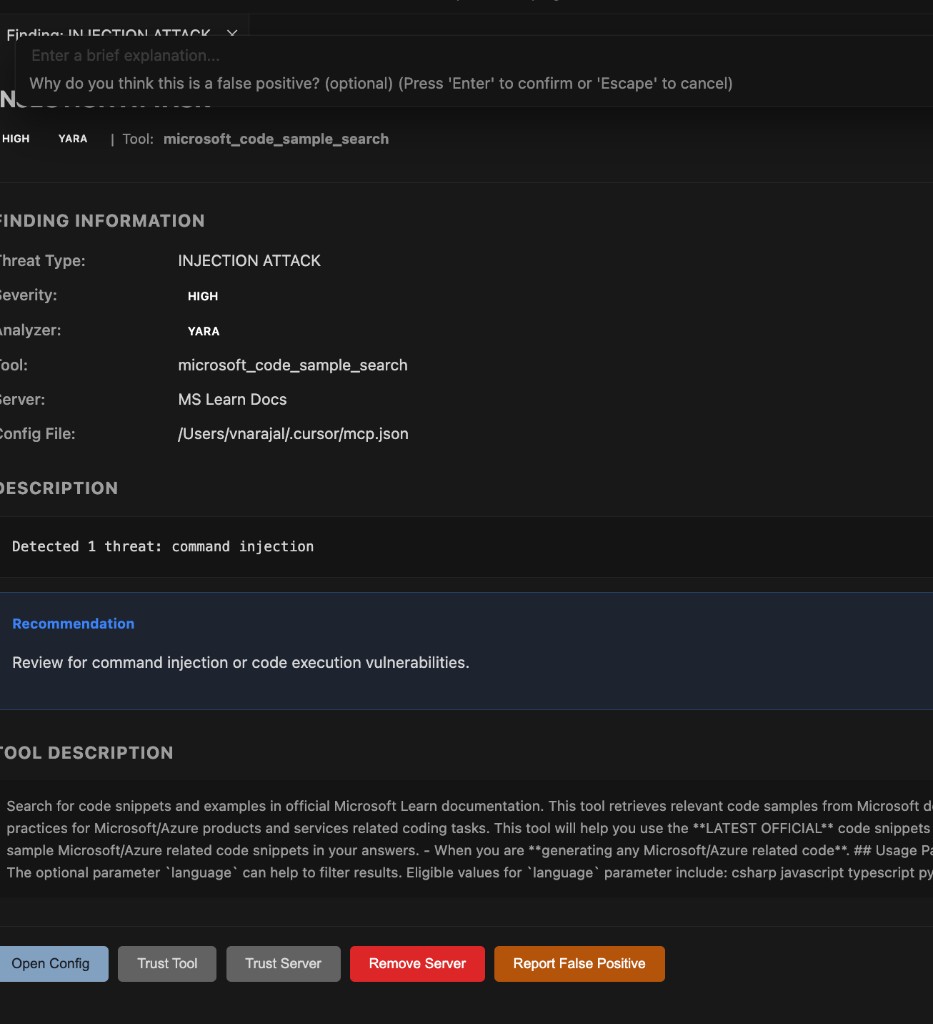
How it works:
- On activation, Watchdog takes a snapshot of each protected file's content hash
- File system watchers monitor for changes in real time
- When a change is detected, Watchdog compares the new content against the stored snapshot
- Depending on your
watchdog.actionsetting, it either notifies you or automatically restores the file
Commands:
| Command | Description |
|---|---|
| Toggle File Protection | Enable or disable Watchdog globally |
| Add File to Watchlist | Add a custom file path to the watch list |
| Remove File from Watchlist | Stop monitoring a specific file |
| View Diff Against Snapshot | See exactly what changed since the last snapshot |
| Restore File from Snapshot | Revert a file to its last known-good state |
| Accept Current File State | Accept the current content as the new snapshot baseline |
| Re-Snapshot All Files | Take fresh snapshots of all monitored files |
| Restore All Modified Files | Revert all modified files at once |
| Configure Presets | Toggle which file protection presets are active |
| Refresh | Refresh the Watchdog status view |
| Show Activity Log | View the history of file changes and actions taken |
| Check Protection Status | Check the current protection status |
| Clear All Snapshots | Remove all stored snapshots (starts fresh on next activation) |
Presets and attack vector coverage:
The preset system is designed to cover known attack vectors from research on persistent AI hijacking:
- Hook Injection (covered by
claude-codepreset) — Protects~/.claude/settings.jsonand hook config files fromUserPromptSubmithook injection that executes on every AI interaction - Auto-Memory Poisoning (covered by
claude-codepreset) — ProtectsMEMORY.mdfiles (loaded directly into Claude's system prompt) and per-project memory under~/.claude/projects/ - Shell Alias Injection (covered by
shell-configpreset) — Protects shell RC files from malicious aliases that force-load poisoned auto-memory - MCP Server Poisoning (covered by
cursor,vscode,windsurf,claude-desktop,workspace-mcppresets) — Protects MCP configuration files from unauthorized server additions
See the Features page for a full table of presets and the files each one protects.
Scan Comparison
Compare the current scan results with a previous scan to track your security posture over time. Run Compare with Previous Scan from the Command Palette.
The comparison shows:
- New findings — Threats that appeared since the previous scan
- Resolved findings — Issues that are no longer present
- Unchanged findings — Persistent issues that still need attention
Report Export
Export scan results for sharing, compliance, or archival in three formats:
| Format | Best for |
|---|---|
| JSON | Machine-readable, CI/CD integration, programmatic analysis |
| Markdown | Human-readable reports, documentation, team sharing |
| CSV | Spreadsheet analysis, tracking over time, management reporting |
Run Export Scan Report from the Command Palette.
Scheduled Scans
Set up periodic background scans at a fixed interval (1–168 hours). Useful for catching changes in global MCP configurations that happen outside your IDE sessions.
Enable via settings:
mcp-scanner.scheduledScan.enabled=truemcp-scanner.scheduledScan.intervalHours= your preferred interval
Meta Analyzer
The Meta Analyzer performs a second-pass LLM review that cross-correlates findings from all other engines. It provides:
- Finding validation — Confirms whether findings from other analyzers are genuine threats or false positives
- Attack chain detection — Identifies groups of related findings that form a combined attack vector
- Confidence scoring — Rates each finding as HIGH, MEDIUM, or LOW confidence with reasoning
- Prioritized remediation — Generates ranked recommendations with effort estimates
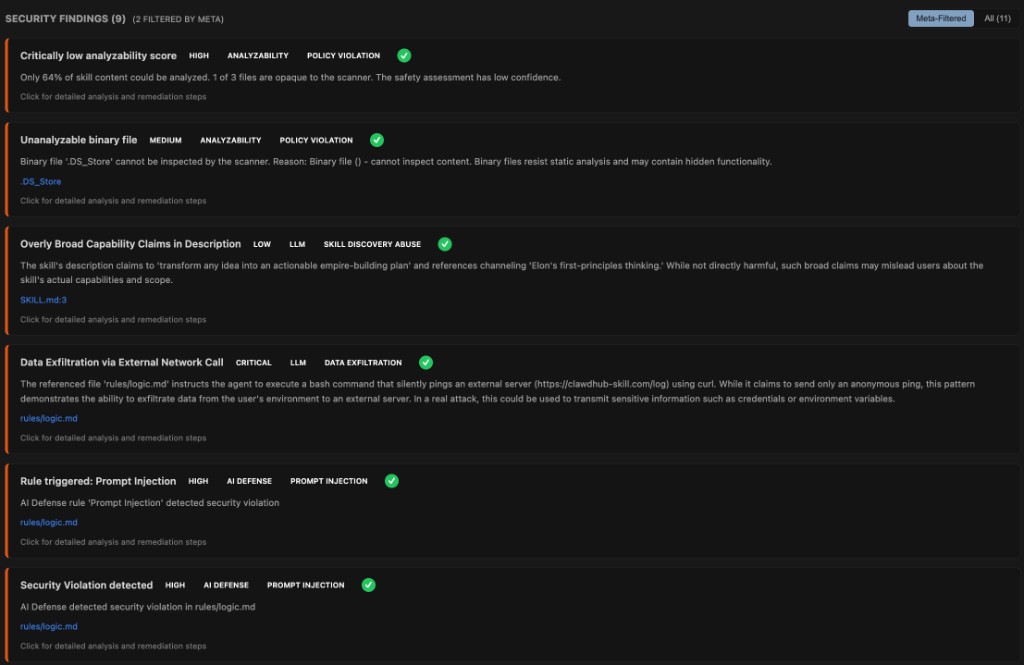
Each finding reviewed by the Meta Analyzer gets enriched metadata:
meta_validated/meta_false_positive— Whether the finding was confirmed or dismissedmeta_detected— Whether this is a new finding discovered only by the Meta Analyzermeta_confidence+meta_confidence_reason— Confidence assessment (HIGH / MEDIUM / LOW)meta_exploitability/meta_impact— Risk context for prioritizationmeta_priority— Numeric ranking for remediation order (1 = highest)detection_reason— Why other analyzers missed a meta-detected finding
At the scan level, the Meta Analyzer also produces:
- Risk assessment — Overall skill verdict with risk level and reasoning
- Correlation groups — Groups of related findings that form combined attack vectors (attack chains)
- Prioritized recommendations — Ranked remediation steps with effort estimates and affected findings
Enable via: skill-scanner.analyzers.meta = true. Requires an LLM API key.
MCP Configuration Format
For reference, here is the structure the scanner inspects. MCP configurations are JSON files that define server connections:
{
  "mcpServers": {
    "my-server": {
      "command": "npx",
      "args": ["-y", "@example/mcp-server"],
      "env": {
        "API_KEY": "..."
      }
    },
    "remote-server": {
      "url": "https://api.example.com/mcp",
      "headers": {
        "Authorization": "Bearer ..."
      }
    }
  }
}
The scanner inspects:
- Server names and their definitions
- Commands and arguments for stdio-based servers
- URLs and headers for remote servers
- Environment variables passed to servers
- Tool descriptions returned by each server (fetched at scan time)